Activity
Mon
Wed
Fri
Sun
May
Jun
Jul
Aug
Sep
Oct
Nov
Dec
Jan
Feb
Mar
Apr
What is this?
Less
More
Owned by James
The NETFLIX of HYPNOSIS. Once you LEARN HYPNOSIS I'll teach you how to use it to build a tribe on Skool
(Invite Only) Impact Driven Leaders On A Mission To Change The World. Build Your Reputation On Skool And Network With Other Influential Leaders.
Memberships
ZetsuEDU
71 members • Free
LimitlessLife
248 members • Free
Intuitive Tarot Academy
17 members • Free
Embrace Your Essence
47 members • Free
Parenting Support Skool
210 members • Free
Resilient Parent
32 members • Free
AFTER-SKOOL DETENTION
8 members • Free
Rekindle The Flame
32 members • Free
AI Advantage
32 members • Free
3 contributions to Skool Extensions 🧩


🔥
2 likes • 15d
@Sarah Geelan
🔥
0 likes • 11d
@William Carter bro you have no idea! 😂

🔥
14d •
Sales Pipeline (Admin Feature 👑)
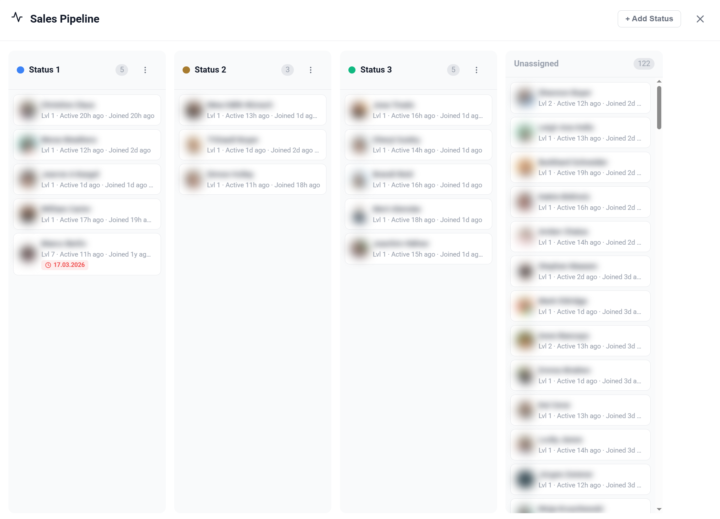
𝗦𝗮𝗹𝗲𝘀 𝗣𝗶𝗽𝗲𝗹𝗶𝗻𝗲 — 𝗧𝗿𝗮𝗰𝗸 𝗠𝗲𝗺𝗯𝗲𝗿𝘀 𝗧𝗵𝗿𝗼𝘂𝗴𝗵 𝗬𝗼𝘂𝗿 𝗙𝘂𝗻𝗻𝗲𝗹 Managing a community means knowing where each member stands in your sales process. The Sales Pipeline gives you a visual, Kanban-style board to track members through customizable stages — right inside Skool. Open the pipeline from the dedicated button in your Members Panel. You'll see a board with columns representing your pipeline stages. Each member card shows the avatar, name, and community. Drag and drop members between columns to update their status, or assign a status directly from the member's right-click context menu in the Members Panel. You have full control over your pipeline stages: create new statuses, rename them, assign custom colors, and drag to reorder. Default stages like "Lead", "Contacted", "Negotiation", and "Closed" are provided to get you started — but you can customize everything to match your actual sales process. Pipeline status badges appear next to member names throughout the platform — in the Members Panel, in comment threads, and on profile cards — so you always have context without opening the pipeline board. The badges use your custom colors for instant visual recognition. The pipeline also works cross-community: members from all your cached communities appear in the board, and you can filter by community to focus on a specific group. All pipeline data syncs via Cloud Sync, so your stages and assignments are available across browsers and devices. The feature can be toggled on or off in the Toolkit Settings under the Admin section. --- 𝗦𝗮𝗹𝗲𝘀 𝗣𝗶𝗽𝗲𝗹𝗶𝗻𝗲 — 𝗠𝗶𝘁𝗴𝗹𝗶𝗲𝗱𝗲𝗿 𝗱𝘂𝗿𝗰𝗵 𝗱𝗲𝗶𝗻𝗲𝗻 𝗙𝘂𝗻𝗻𝗲𝗹 𝘃𝗲𝗿𝗳𝗼𝗹𝗴𝗲𝗻 Eine Community zu managen bedeutet zu wissen, wo jedes Mitglied in deinem Verkaufsprozess steht. Die Sales Pipeline gibt dir ein visuelles Kanban-Board, um Mitglieder durch anpassbare Stufen zu verfolgen — direkt in Skool. Öffne die Pipeline über den dedizierten Button in deinem Members Panel. Du siehst ein Board mit Spalten, die deine Pipeline-Stufen darstellen. Jede Mitgliederkarte zeigt Avatar, Name und Community. Ziehe Mitglieder per Drag & Drop zwischen Spalten, um ihren Status zu aktualisieren, oder weise einen Status direkt über das Rechtsklick-Kontextmenü im Members Panel zu.
🔥
2 likes • 14d
@William Carter did you see the “calendar” feature? Where you can just get a list of all the events across all the groups yournin?
🔥
3 likes • 14d
@William Carter that’s how I started coming to your morning coffee callsn
🔥
18d •
Yooooooooo!
@J'son Elizondo What up my people? I'm brand new to the space. My boy Jason sent me this thing last night and said, "Yo bro, we got a group chat over here. You can see a calendar and connect with people and have a little tab." So he just told me to trust your friend. So here I am and I downloaded the extension and it's pretty dope. So I'm really excited to be here. My name is James and yeah, looking to connect with some like-minded dope people and send you guys some love! GIF WAR BELOW SO I CAN GET TO LEVEL 3 😂

1-3 of 3

🔥
@james-bansbach-9258
I'm here to teach you the magic of HYPNOSIS and how to reconnect with your DRAGON ENERGY. I do a bunch of other cool things too so send me a DM.
Online now
Joined Mar 19, 2026
ENFP
North York Toronto
Powered by