Activity
Mon
Wed
Fri
Sun
May
Jun
Jul
Aug
Sep
Oct
Nov
Dec
Jan
Feb
Mar
Apr
What is this?
Less
More
Owned by Silke
Polynesisches 🥥🌴🌊🐢🍍 Lebensgefühl an jedem Tag. Insider-Reisetipps für Hawai'i 🌺 und Polynesien. Austausch mit Herz & Aloha. Auf Deutsch.
Memberships
Meilenweit Voraus Basic ⭐️
4k members • Free
Sylt - Gemeinsam Meer erleben
605 members • Free
Reise Community
55 members • Free
Weltenbummler-Treff
499 members • Free
Leidenschaft Reisen
228 members • Free
DEMENZ IST ANDERS Community
188 members • Free
Body & Mind Fitness
26 members • Free
Gemeinsam Spirituell Wachsen
60 members • Free
NLP Community
415 members • Free
5 contributions to Skool Extensions 🧩

🔥
7d •
Classroom Checklists (Admin Feature 👑)
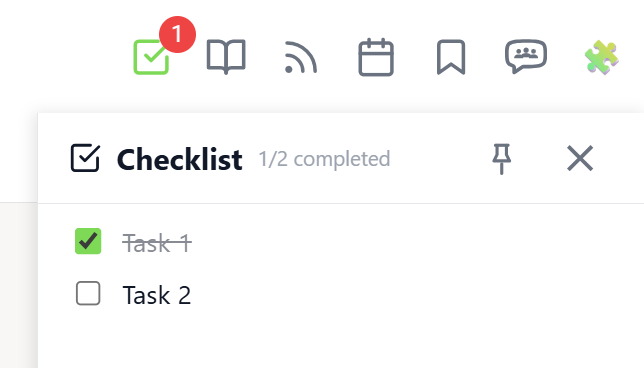
𝗖𝗹𝗮𝘀𝘀𝗿𝗼𝗼𝗺 𝗖𝗵𝗲𝗰𝗸𝗹𝗶𝘀𝘁𝘀 — 𝗔𝗱𝗺𝗶𝗻-𝗖𝗿𝗲𝗮𝘁𝗲𝗱 𝗧𝗮𝘀𝗸 𝗟𝗶𝘀𝘁𝘀 𝗳𝗼𝗿 𝗖𝗹𝗮𝘀𝘀𝗿𝗼𝗼𝗺 𝗣𝗮𝗴𝗲𝘀 Keep your members on track with structured task lists on individual classroom pages. Classroom Checklists let admins create, edit, reorder, and delete tasks that appear directly in the Course Overview panel — giving members a clear view of what needs to be done for each lesson. Open the Course Overview panel and expand a module. Pages that have tasks show a small checklist icon next to their title. Click a page row to reveal its checklist. Each task displays a completion progress bar showing how many members have completed it (e.g. "12/25 (48%)"). Hover over the bar to see the names of members who completed the task. Admins can add new tasks using the input field below the task list. Existing tasks can be edited inline by clicking the pencil icon, reordered by drag & drop, or deleted with the trash icon. Edit and delete buttons appear on hover to keep the interface clean. The feature requires the "Online Features" consent (shared with Group Chat) because checklist data is stored on the server. Task progress is tracked per member and synced across devices. The checklist integrates with the existing Course Overview panel — no separate panel needed. Classroom Checklists can be toggled in the Toolkit Settings under Features. The feature is available on any classroom page within your community. --- 𝗖𝗹𝗮𝘀𝘀𝗿𝗼𝗼𝗺 𝗖𝗵𝗲𝗰𝗸𝗹𝗶𝘀𝘁𝗲𝗻 — 𝗔𝘂𝗳𝗴𝗮𝗯𝗲𝗻𝗹𝗶𝘀𝘁𝗲𝗻 𝗳ü𝗿 𝗖𝗹𝗮𝘀𝘀𝗿𝗼𝗼𝗺-𝗦𝗲𝗶𝘁𝗲𝗻 𝘃𝗼𝗻 𝗔𝗱𝗺𝗶𝗻𝘀 𝗲𝗿𝘀𝘁𝗲𝗹𝗹𝘁 Halte deine Mitglieder auf Kurs mit strukturierten Aufgabenlisten auf einzelnen Classroom-Seiten. Classroom Checklisten ermöglichen es Admins, Aufgaben zu erstellen, zu bearbeiten, neu zu sortieren und zu löschen, die direkt im Kursübersicht-Panel angezeigt werden — so sehen Mitglieder auf einen Blick, was für jede Lektion zu tun ist. Öffne das Kursübersicht-Panel und klappe ein Modul auf. Seiten mit Aufgaben zeigen ein kleines Checklisten-Icon neben dem Titel. Klicke auf eine Seitenzeile, um die Checkliste aufzuklappen. Jede Aufgabe zeigt einen Fortschrittsbalken mit der Anzahl der Mitglieder, die sie abgeschlossen haben (z.B. „12/25 (48%)"). Hover über den Balken, um die Namen der Mitglieder zu sehen, die die Aufgabe erledigt haben.

🔥
2 likes • 7d
Sehen die Checklisten auch die Mitglieder, die die Extension nicht im Gebrauch haben? Steh gerade ein wenig auf dem Schlauch.
🔥
2 likes • 7d
@Marco Berlin Das habe ich mir auch so gedacht. Danke für die Klärung!
🔥
11d •
Statement: Working with Skool (not against it)
In the age of automation and AI, so much is possible. You can see how fast this extension is evolving. However, one thing is very important to me: Every feature I add to the extension is intended to support the Skool ecosystem. If it turns out that a feature doesn't align with Skool’s vision, I will remove it immediately. Please ignore my previous post. I have deleted it on purpose. --- In Zeiten von Automatisierungen und KI ist extrem viel möglich. Ihr seht, wie schnell sich die Extension entwickelt. Eines ist mir aber sehr wichtig: Jedes Feature, das ich in die Extension einbaue, soll im Sinne von Skool sein. Wenn sich herausstellen sollte, dass ein Feature mal nicht passt, werde ich es auch wieder entfernen. Den Post von vorhin bitte entsprechend ignorieren. Den habe ich mit Absicht wieder gelöscht.
🔥
2 likes • 11d
Hi hi lieber Marco - manchmal überhitzt Dein Motor ein wenig...😅
🔥
24d •
DM & Skool Notifications
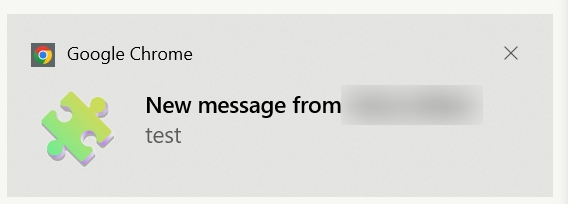
𝗕𝗿𝗼𝘄𝘀𝗲𝗿 𝗡𝗼𝘁𝗶𝗳𝗶𝗰𝗮𝘁𝗶𝗼𝗻𝘀 — 𝗡𝗲𝘃𝗲𝗿 𝗠𝗶𝘀𝘀 𝗮 𝗠𝗲𝘀𝘀𝗮𝗴𝗲 Skool doesn't send browser notifications by default, which means you have to keep checking the tab. This extension changes that: get instant Chrome notifications for new direct messages and Skool notifications. When someone sends you a DM, a browser notification pops up showing the sender's name and a preview of the message. Click the notification to jump straight to your chat. The same works for Skool notifications (new comments, likes, mentions) — you get a browser alert so you never miss important activity. Both notification types can be toggled independently in the Toolkit Settings. And if you've activated Focus Mode, all notifications are automatically suppressed — so you stay in control. --- 𝗕𝗿𝗼𝘄𝘀𝗲𝗿-𝗕𝗲𝗻𝗮𝗰𝗵𝗿𝗶𝗰𝗵𝘁𝗶𝗴𝘂𝗻𝗴𝗲𝗻 — 𝗞𝗲𝗶𝗻𝗲 𝗡𝗮𝗰𝗵𝗿𝗶𝗰𝗵𝘁 𝗺𝗲𝗵𝗿 𝘃𝗲𝗿𝗽𝗮𝘀𝘀𝗲𝗻 Skool sendet standardmäßig keine Browser-Benachrichtigungen, was bedeutet, dass du ständig den Tab überprüfen musst. Diese Extension ändert das: Erhalte sofortige Chrome-Benachrichtigungen für neue Direktnachrichten und Skool-Benachrichtigungen. Wenn dir jemand eine DM schickt, erscheint eine Browser-Benachrichtigung mit dem Namen des Absenders und einer Vorschau der Nachricht. Klick auf die Benachrichtigung, um direkt zu deinem Chat zu springen. Das Gleiche gilt für Skool-Benachrichtigungen (neue Kommentare, Likes, Erwähnungen) — du bekommst einen Browser-Alert, damit du keine wichtige Aktivität verpasst. Beide Benachrichtigungstypen können unabhängig voneinander in den Toolkit-Einstellungen ein- und ausgeschaltet werden. Und wenn du den Focus Mode aktiviert hast, werden alle Benachrichtigungen automatisch unterdrückt — du behältst die Kontrolle.
🔥
1 like • 13d
@Marco Berlin Was meinst Du mit "außer die Skool Notifications"?
🔥
1 like • 13d
@Marco Berlin Ah jetzt verstehe ich es...nur Nachrichten, Termine und so an - ok, das passt!
🔥
16d •
Firefox now available 🔥
The new release is now live. You can find all details in the new popup that opens after loading the update. I also always share all changes in this post shortly before the release: https://www.skool.com/skool-extensions/update-info Turn on the bell in that post if you want to receive it as a Skool notification. With this release, the extension is now also available for Firefox. Just install it via the Firefox Store: https://addons.mozilla.org/de/firefox/addon/skool-extensions/ I’m really happy with the feedback and excited that this extension is already providing so much value—after just 2 weeks. I’m pushing development forward every single day. There’s a lot more to come. Let’s take Skool to the next level together 🚀 PS: Do you love the extension? Recommend it to others and rate the app with 5 stars on the Chrome Web Store: https://chromewebstore.google.com/detail/skool-extensions/jinaapgibcgkfaffmpkhdikncmfhpfne --- Das neue Release ist veröffentlicht. Alle Details findet ihr im neuen Popup, das sich nach dem Laden des Updates öffnet. Außerdem teile ich in diesem Post kurz vor der Veröffentlichung immer alle Änderungen: https://www.skool.com/skool-extensions/update-info Aktiviert in dem Post die Glocke, wenn ihr das als Skool-Notification erhalten wollt. Mit dem neuen Release ist die Extension ab sofort auch im Firefox installierbar. Einfach über den Firefox Store gehen: https://addons.mozilla.org/de/firefox/addon/skool-extensions/ Ich bin begeistert vom Feedback und freue mich sehr, dass diese Extension bereits so viel Mehrwert bietet – und das erst nach 2 Wochen. Ich pushe die Entwicklung jeden Tag weiter. Da kommt noch einiges.

🔥
5 likes • 16d
Ok, sehr cool! Gleich mal Firefox aktiviert! Eine Sache ist mir aufgefallen: Es steht "Chrome Notifications" - müsste das da nicht "Firefox Notifications" heißen? Oder vielleicht allgemeiner, so dass es für beide gelten kann "Browser Notifications"? Siehe im Screenshot was ich meine.
🔥
3 likes • 16d
@Marco Berlin Ich bin nach wie vor sehr begeistert vom Tool 😅!
🔥
27d •
🧩 Skool Extensions starting
skool-extensions.com I’m officially releasing my Skool Extensions! 🥳 Install the extension, give me your feedback and ideas, and spread the word! --- Hiermit veröffentliche ich offiziell meine Skool Chrome Extension 🥳 Installier dir die Extension, geb mir Feedback und Ideen und erzählt es weiter.

🔥
13 likes • 23d
Sehr toll, lieber Marco! Derzeit habe ich kein Feature-Request - wobei ich über Nacht wie von Zauberhand wieder ein paar neue Gimmicks entdeckt habe... Bin gespannt, was noch alles kommt!
1-5 of 5

🔥
@silkebrand
🌴Reiseverrückt.
🩷Aloha im Herzen.
🍍Weltoffen.
🌈 Komm in unsere Aloha Hawaii🌸 Skool Community hier ⏬!
Active 13h ago
Joined Apr 2, 2026
Schöneck (Hessen), Germany
Powered by