Activity
Mon
Wed
Fri
Sun
May
Jun
Jul
Aug
Sep
Oct
Nov
Dec
Jan
Feb
Mar
Apr
What is this?
Less
More
Owned by Nick
Join AI Storytellers to learn the workflows for making Short Films. Overwhelm to momentum with our filmmaking community. You learn Story and Film!
Memberships
Claude Builders
3 members • $97/month
AI Backbone Community
8 members • Free
Very Social Animal
3.7k members • Free
Consistent Characters
109 members • Free
Business Builders Club
7.7k members • Free
KDP Publishing
856 members • Free
Skool Network 💲💰📈💰💲
83 members • Free
the skool CLASSIFIEDS
1.6k members • Free
Bio Builders
195 members • Free
5 contributions to Skool Extensions 🧩

🔥
7d •
Classroom Checklists (Admin Feature 👑)
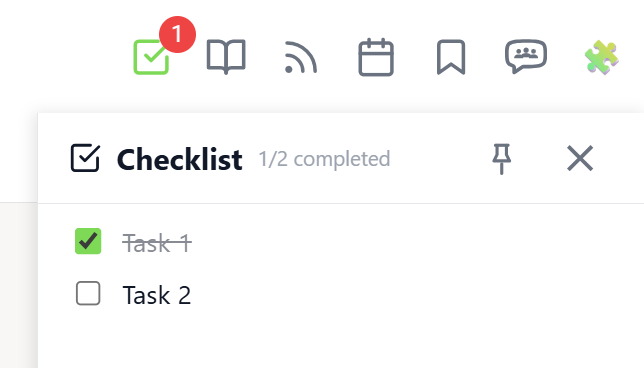
𝗖𝗹𝗮𝘀𝘀𝗿𝗼𝗼𝗺 𝗖𝗵𝗲𝗰𝗸𝗹𝗶𝘀𝘁𝘀 — 𝗔𝗱𝗺𝗶𝗻-𝗖𝗿𝗲𝗮𝘁𝗲𝗱 𝗧𝗮𝘀𝗸 𝗟𝗶𝘀𝘁𝘀 𝗳𝗼𝗿 𝗖𝗹𝗮𝘀𝘀𝗿𝗼𝗼𝗺 𝗣𝗮𝗴𝗲𝘀 Keep your members on track with structured task lists on individual classroom pages. Classroom Checklists let admins create, edit, reorder, and delete tasks that appear directly in the Course Overview panel — giving members a clear view of what needs to be done for each lesson. Open the Course Overview panel and expand a module. Pages that have tasks show a small checklist icon next to their title. Click a page row to reveal its checklist. Each task displays a completion progress bar showing how many members have completed it (e.g. "12/25 (48%)"). Hover over the bar to see the names of members who completed the task. Admins can add new tasks using the input field below the task list. Existing tasks can be edited inline by clicking the pencil icon, reordered by drag & drop, or deleted with the trash icon. Edit and delete buttons appear on hover to keep the interface clean. The feature requires the "Online Features" consent (shared with Group Chat) because checklist data is stored on the server. Task progress is tracked per member and synced across devices. The checklist integrates with the existing Course Overview panel — no separate panel needed. Classroom Checklists can be toggled in the Toolkit Settings under Features. The feature is available on any classroom page within your community. --- 𝗖𝗹𝗮𝘀𝘀𝗿𝗼𝗼𝗺 𝗖𝗵𝗲𝗰𝗸𝗹𝗶𝘀𝘁𝗲𝗻 — 𝗔𝘂𝗳𝗴𝗮𝗯𝗲𝗻𝗹𝗶𝘀𝘁𝗲𝗻 𝗳ü𝗿 𝗖𝗹𝗮𝘀𝘀𝗿𝗼𝗼𝗺-𝗦𝗲𝗶𝘁𝗲𝗻 𝘃𝗼𝗻 𝗔𝗱𝗺𝗶𝗻𝘀 𝗲𝗿𝘀𝘁𝗲𝗹𝗹𝘁 Halte deine Mitglieder auf Kurs mit strukturierten Aufgabenlisten auf einzelnen Classroom-Seiten. Classroom Checklisten ermöglichen es Admins, Aufgaben zu erstellen, zu bearbeiten, neu zu sortieren und zu löschen, die direkt im Kursübersicht-Panel angezeigt werden — so sehen Mitglieder auf einen Blick, was für jede Lektion zu tun ist. Öffne das Kursübersicht-Panel und klappe ein Modul auf. Seiten mit Aufgaben zeigen ein kleines Checklisten-Icon neben dem Titel. Klicke auf eine Seitenzeile, um die Checkliste aufzuklappen. Jede Aufgabe zeigt einen Fortschrittsbalken mit der Anzahl der Mitglieder, die sie abgeschlossen haben (z.B. „12/25 (48%)"). Hover über den Balken, um die Namen der Mitglieder zu sehen, die die Aufgabe erledigt haben.

🔥
3 likes • 7d
This is SICK!
🔥
11d •
Quick Question
I sent out invites to my members to join my group chat. How do they physically join the group? I gave them all the code. What are the steps they need to take?
🔥
0 likes • 10d
@Larushca Fourie share with me please how you were able to get into the group chat
🔥
1 like • 10d
@Marco Berlin I get that, but where or how do they enter the chat? Meaning will they see that screen after I send the link?

🔥
11d •
Didn’t expect this to be THIS good…
I just want to say thank you for building this Extension @Marco Berlin 🙌 I installed it last night and this morning I almost made a whole post celebrating “new voice notes in DMs”… 😅 Only to realize — it’s not a Skool update… it’s your tool. That’s how seamless it is. Once I started actually exploring everything (and clicking way too many things at once 😂), I realized how powerful this really is. 𝗕𝗲𝗶𝗻𝗴 𝗮𝗯𝗹𝗲 𝘁𝗼: - send voice notes directly in DMs (LOVE this) - see everything in one place (calendar) - manage activity more easily (pipelines) - stay fully on-platform without jumping around (group chats) - On screen daily activity and discovery ranking (wow) It genuinely changes the way Skool feels to use. You can tell this was built by someone who actually understands how we operate day-to-day inside these communities. So yeah… just wanted to say I really appreciate what you’ve created 🙏 This is seriously amazing!

🔥
3 likes • 11d
You are so happy!

🔥
13d •
Skool cat bug
I have Skool cat turned off but it keeps prompting search to do the "Let there be cat" or "shoo cat" without me prompting. I tested to make sure it's this extension by turning it off. I just turned it back on and it did it again.
🔥
0 likes • 12d
I had the same issue but for me, I never had it on and it was crashing Skool over and over. I reached out to Marco and he fixed it!
1-5 of 5

🔥
@storytellers
More than animations. It’s a belief system that anything is possible! Film and Stories in a whole new light! Come fly with us!
Active 19m ago
Joined Mar 24, 2026
Phoenix, AZ
Powered by